
Graphical Editor
Edit LAD, FBD and SCL networks and block interfaces, monitor a PLC, and compare versions.
.s7dcl files open as text by default. Use Open S7DCL Graphical Editor from the editor title menu, the Explorer context menu or the Command Palette to open the block graphically. To always open them graphically, use Reopen Editor With... and set S7DCL Graphical Editor as the default.
The graphical editor shows the whole block: the interface table, then each network in source order. LAD and FBD networks are drawn as diagrams and SCL networks get a full SCL editor. Everything you do in the graphical editor is an edit to the .s7dcl text, so undo, redo, save, Git and the text editor all keep working on the same document.
Scroll position, zoom and collapsed networks are kept when you switch between the text and graphical editor, and after reloading VS Code.
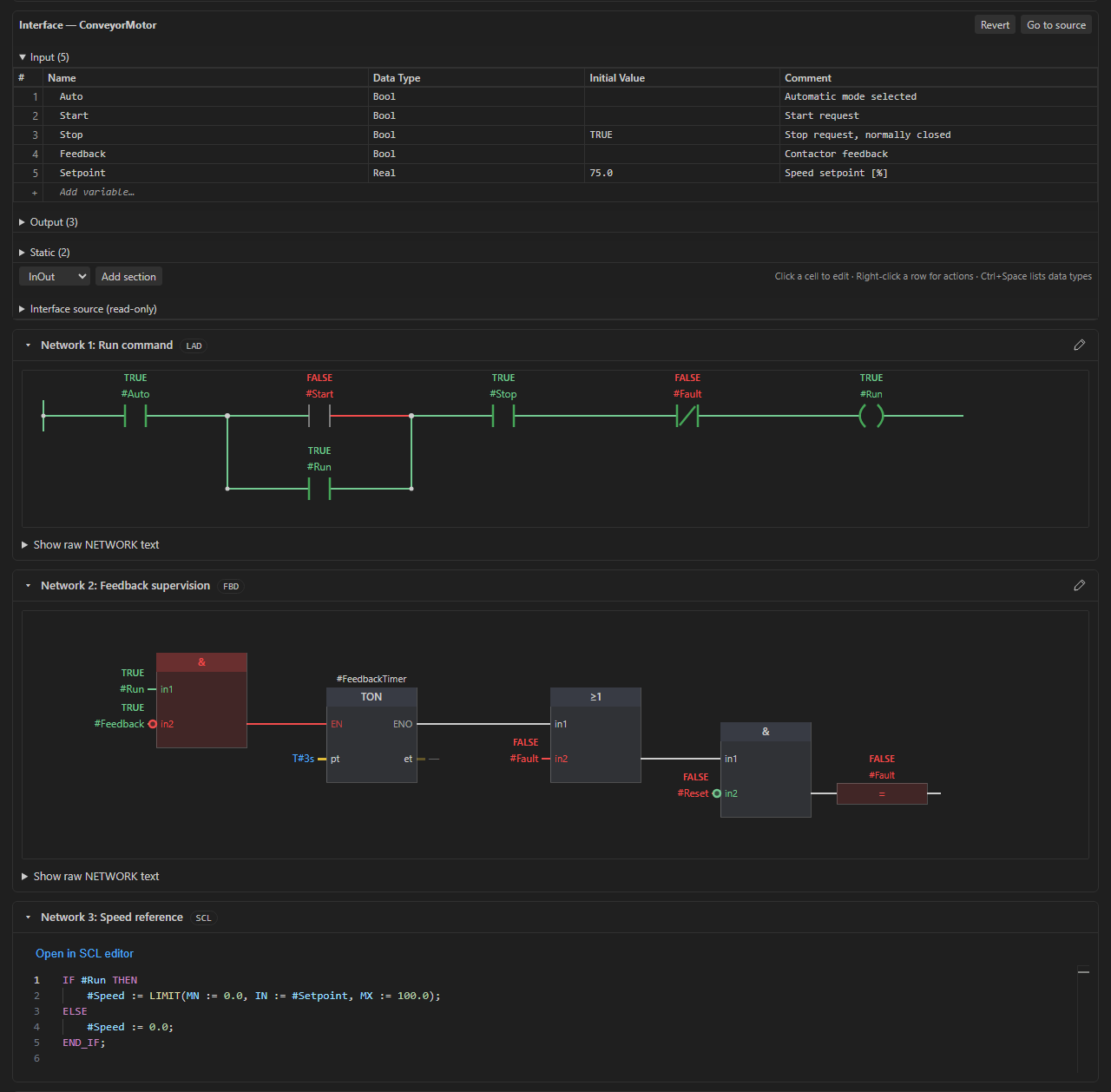
Operands
- Click a variable to highlight every use of it in the block.
- Double-click an operand to type a new one. Completion and hover are the same as in the text editor.
- Right-click an item to go to its source range, or Open block on a call. Instance calls open the function block, not the instance declaration.
- Press Ctrl+C on an operand, select another operand and press Ctrl+V to replace it.
- Ctrl+wheel zooms.
Diagnostics for the block are listed in a panel at the top of the editor and marked on the operands, pins and calls they belong to. Click a diagnostic to jump to it.
Editing LAD and FBD networks
Click the pencil in a network header to show the editing toolbar. Pick an instruction, click a symbol in the diagram to select it, and use Insert before, Insert after, Replace or Delete instruction. Shift-click a second symbol to select a series, then Parallel branch to put the chosen instruction in parallel with it.
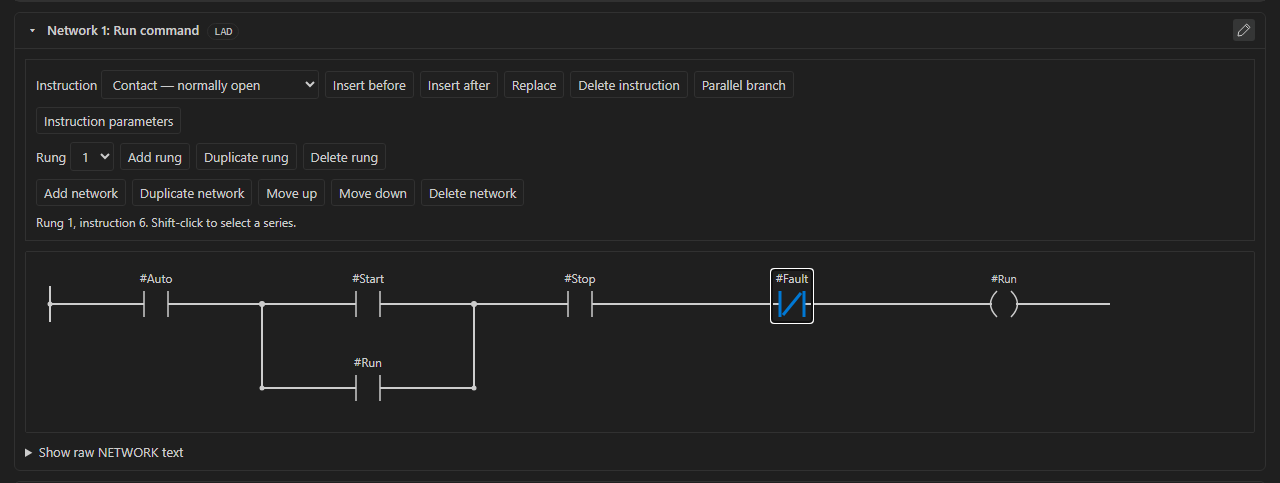
The same toolbar adds, duplicates, moves and deletes rungs and networks. An empty block offers Add LAD network and Add FBD network. To wire a call input to another instruction, select the call, pick the source in Wire from and the target in Input pin, then Connect. Disconnect clears the input.
Each edit is checked by the parser and wire validator before it is applied as a single undoable change. Edits that would leave a dangling wire are rejected with a message in the toolbar.
With the diagram focused, Enter or Space selects a symbol, Delete removes it and Insert opens the instruction list.
Long LAD rungs are drawn as one continuous circuit instead of being cut into numbered continuation pieces. Boolean logic that feeds a call input is drawn next to that input. Different named junctions get separate vertical lines, and lines that cross without a junction dot are not connected.
If a network has wiring the editor can't draw, such as malformed, cyclic or unresolved wires, it shows the reason and the network's source text instead.
SCL networks
SCL networks inside a block are edited in place, with syntax highlighting, completion, hover, go to definition and diagnostics. Open in SCL editor opens the .s7dcl text at that network.
Interface table
The interface is shown as a table with one section per declaration type (Input, Output, InOut, Static, Temp, Constant). Click a cell to edit it. Data types are suggested as you type, and Ctrl+Space lists them. Rows and cells can be pasted from a spreadsheet. Right-click a row for more actions.
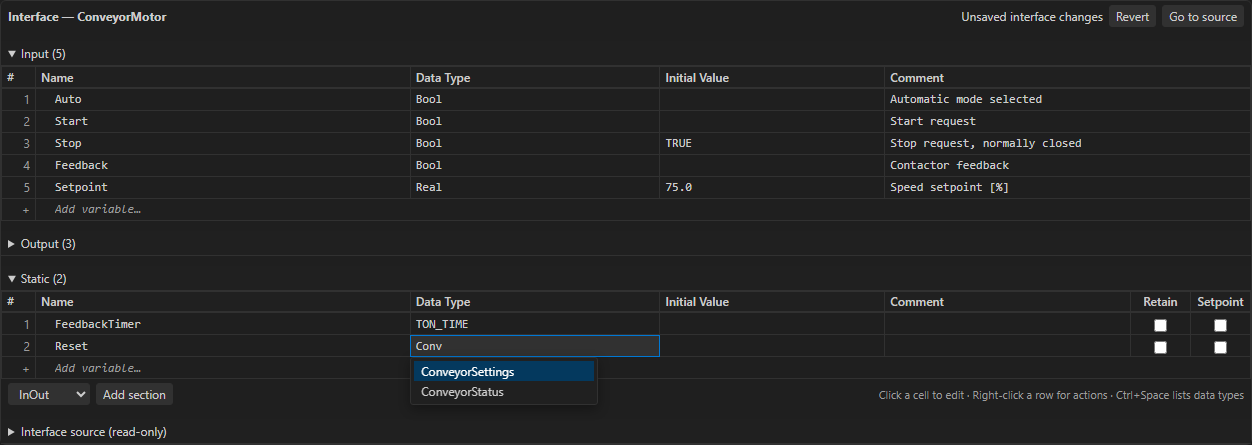
Invalid names, types and initial values are marked while you type. Revert throws away interface edits that have not been applied yet. Sections, structures and networks can be collapsed.
Find and replace
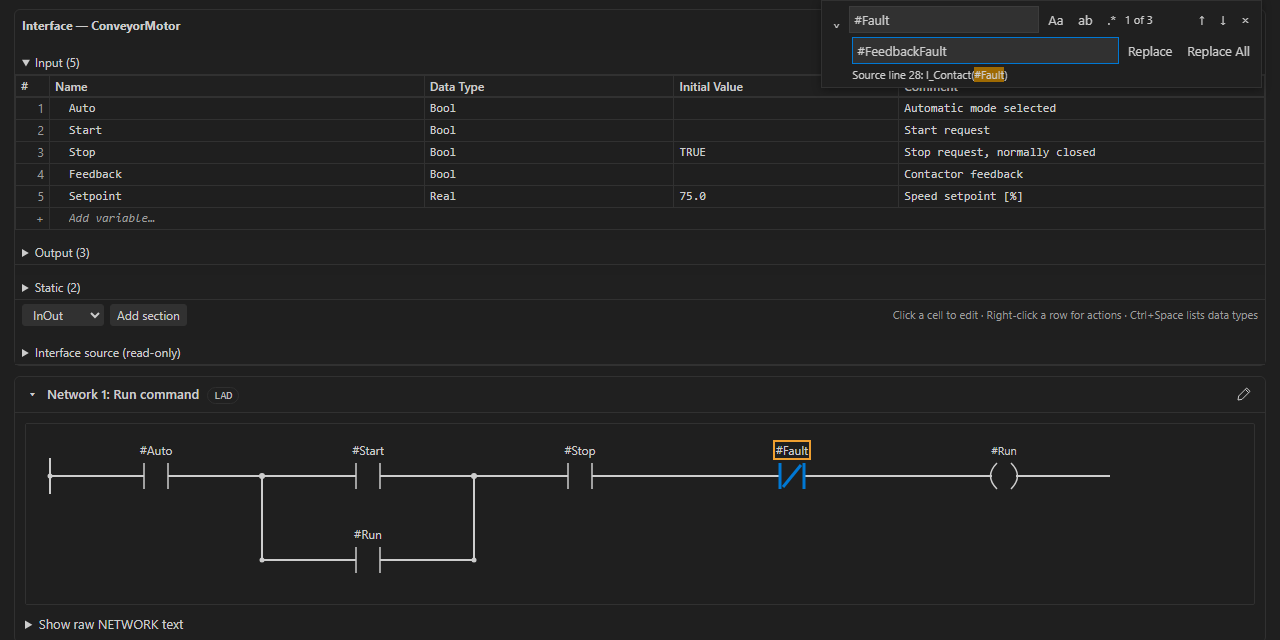
Ctrl+F opens find and Ctrl+H opens replace. Search covers the interface and all networks, including collapsed ones. Case, whole word and regular expression options work as in VS Code.
Monitoring a PLC
The PLC Monitoring view in the Explorer connects the editor to a running PLC. A target is either a generated runtime debug session or the IP address of a Siemens CPU. For Siemens CPUs the connection is read-only and uses S7CommPlus on port 102. The first connection shows the CPU's certificate fingerprint for you to accept.
Monitoring currently requires a CPU configuration that allows reads without a password. Password and user-account protected access is not implemented yet.
For a function block, pick the instance to monitor in the sidebar. The list includes instance DBs, multi-instances and array elements. If the list is cut short on a large project, type the instance path instead, for example "Fleet".motors[2500].
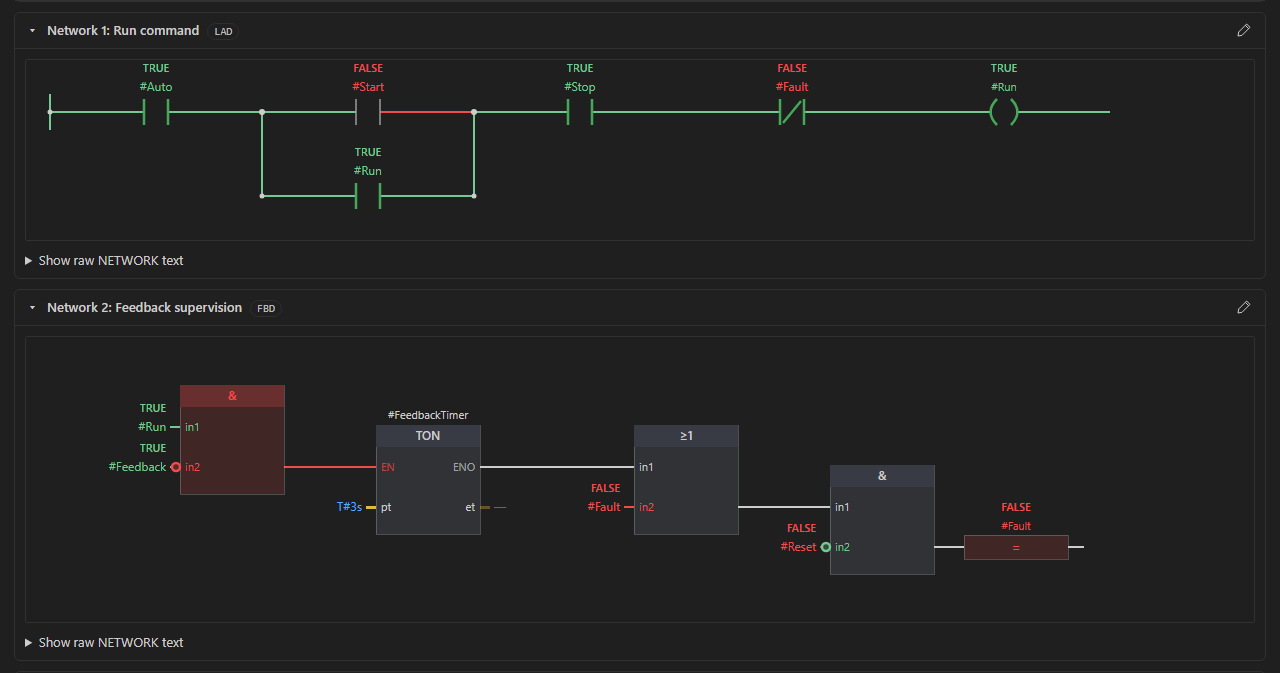
Values are shown above each operand. Boolean wires are green for TRUE and red for FALSE. Contacts, coils, AND, OR, XOR and comparison blocks are coloured from the sampled inputs, so these colours are worked out from samples, not traced from the CPU cycle. Function calls and ENO are not simulated and stay neutral. Hover a value for the resolved path, or for the reason a value is unavailable. Values also show next to variables in SCL and text .s7dcl editors.
The CPU is polled every 500 ms by default (siemens.monitoring.pollIntervalMs). Only operands on screen, or just below it, are read. Reconnect after downloading a changed program.
Graphical comparisons
Open Graphical Diff Against HEAD compares the open document, including unsaved edits, with its Git HEAD version. Open Graphical Comparison on an existing text diff shows the same two documents graphically. Files under Changed in TIA Portal in the TIA Portal source control view open as a graphical comparison against TIA.
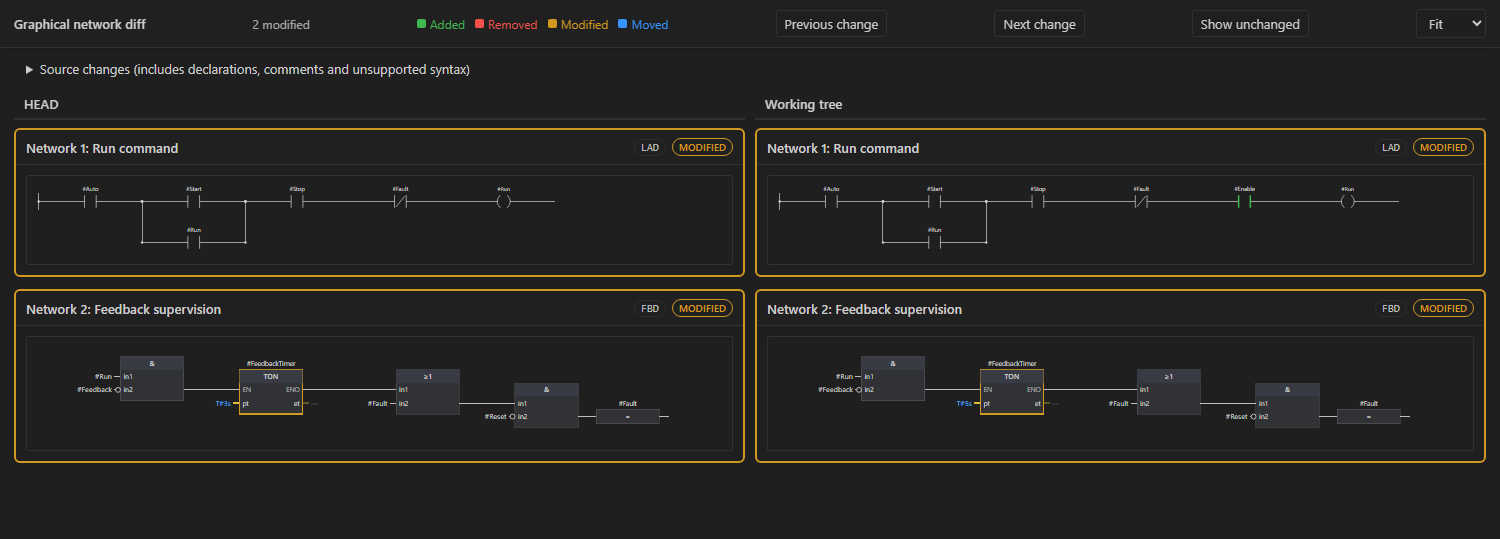
Networks are matched side by side and marked as added, removed, modified or moved. Changed instructions and operands are coloured by change type, and clicking one highlights its counterpart. Use Previous change, Next change and Hide unchanged to step through large blocks. Source changes shows declaration, comment and attribute changes as text.
Line endings and whitespace between SCL tokens are not counted as changes. A network that only moved gets a Moved · Network X → Y badge. Title, comment and attribute changes are shown as Metadata changed.